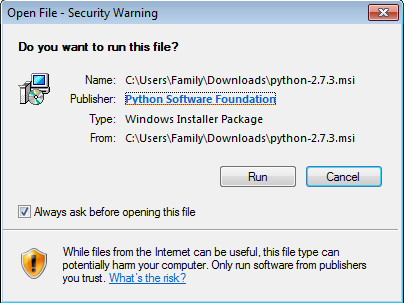
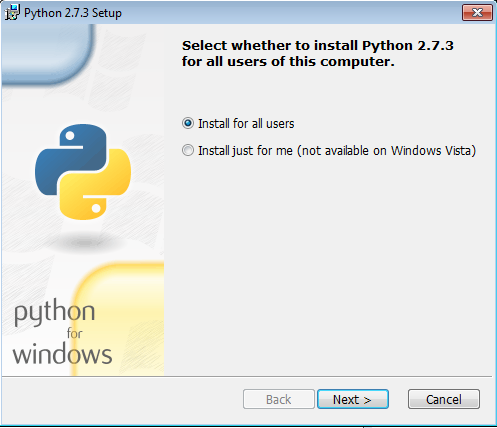
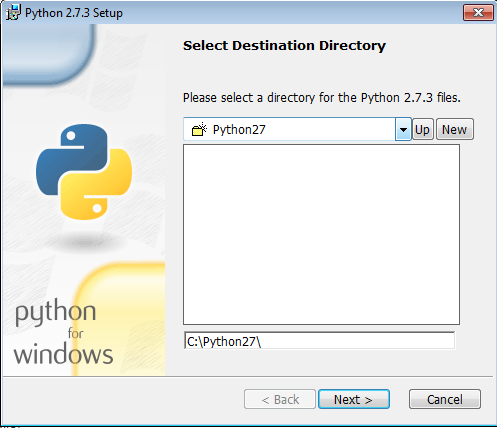
Configurating and Installing Python 2.7 (Optional)

media_1361608401879.png
media_1361608415763.png
media_1361608727747.png
media_1361608736639.png
media_1361608755476.png
media_1361608766641.png
Click Finish

System Properties

media_1361608890300.png

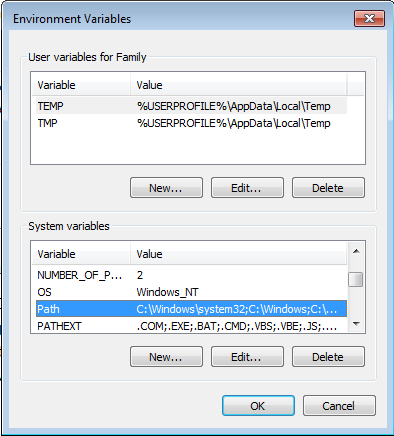
Environment Variables

media_1361609005489.png
Set the system’s PATH variable to include directories that include Python components and packages we’ll add later. To do this:
Right-click Computer and select Properties.
In the dialog box, select Advanced System Settings.
In the next dialog, select Environment Variables.

Edit System Variable

media_1361609041253.png
In the User Variables section, edit the PATH statement to include this:
C:\Python27;C:\Python27\Lib\site-packages\;C:\Python27\Scripts\;

Command Prompt

media_1361609162154.png
Type python to verify that it is working.

Installing and configuring VirtualBox 4.2 for GNS3 0.8.3

media_1361611777000.png
Download a copy of the virtualbox from Virtualbox.org. If you are running GNS3 0.8.3, the recommand version of the VirtualBox is 4.2 and above.
Double-click on the VirtualBox setup file and click Run to continue the installation.

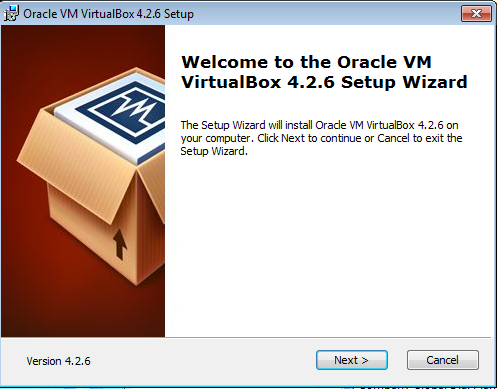
Virtualbox 4.2 setup

media_1361611803730.png
Click Next >
media_1361611830586.png
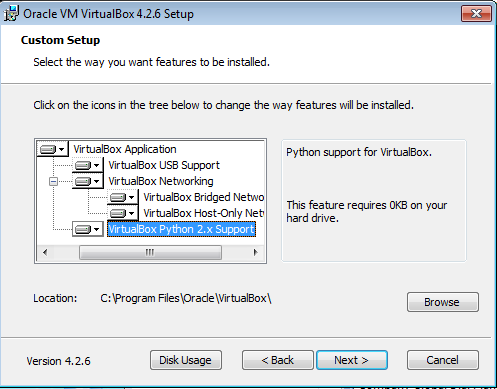
All the features are selected to be installed and the default location will be used for the installation. Click Next >
media_1361611842276.png
Click Next >
media_1361611849681.png
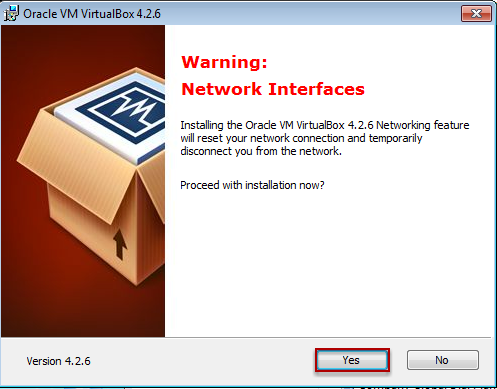
Click Yes
media_1361611893476.png
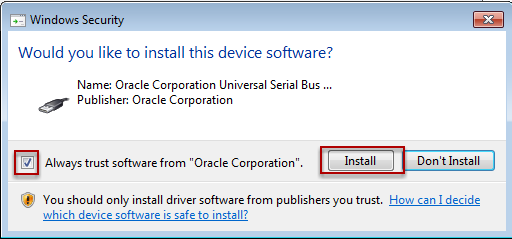
Click install and Always trust software from "Oracle Corporation".
media_1361611860098.png
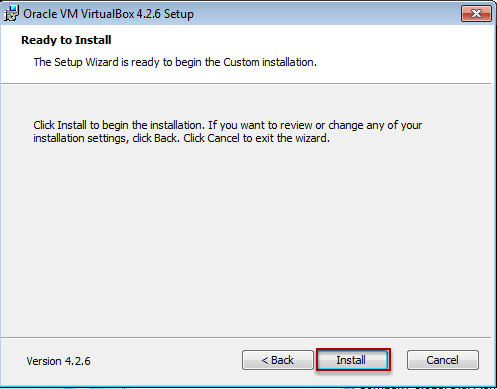
Click Install
media_1361611872486.png
media_1361611918499.png
media_1361611924529.png

Oracle VM VirtualBox Manager

media_1361611964940.png
Close the VirtualBox Manager

Under the GNS3

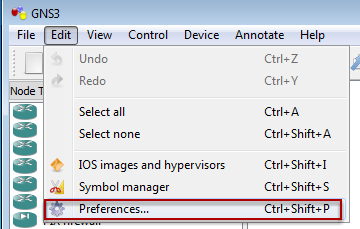
media_1361621124125.png
On the menubar, click Edit, select Preferences...

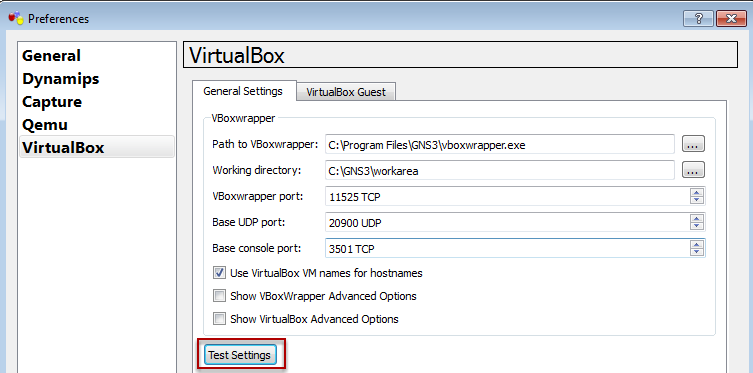
VirtualBox Preferences

media_1361621135725.png
Under the VirtualBox, click Test Settings
media_1361621146857.png
The message will display that the VBoxwrapper and VirtualBox API 4.2 have successfully started.